
How to recover and upload deleted data in kobotoolbox
Recovering deleted data in KoBoToolbox depends on several factors, including whether backups are available or if the data is still retrievable from the system. While losing important data can be stressful, there are several methods you can try to restore it.
In this guide, we’ll walk you through the key recovery options available in KoBoToolbox. From checking built-in archive or trash folders to exploring backup solutions and external recovery methods, we’ll outline the steps you can take to retrieve lost data effectively. By following these best practices, you can improve your chances of successful recovery and ensure your data remains protected in the future.
1.Check Data Table for Soft Deletion
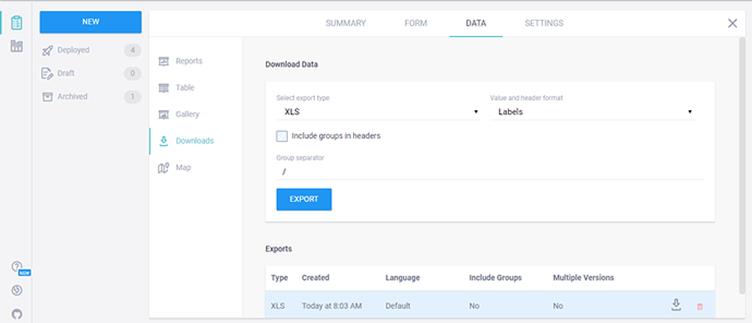
- Sometimes, submissions are archived instead of permanently deleted.
- Go to DATA > Table View and check if the data is still available
2. Using ODK Briefcase to upload Data

If you collected data using ODK Collect and need to push it back to KoboToolbox, follow these steps:
Steps:
1.Download ODK Briefcase
Click here to Download ODK Briefcase
2.Pull Data from Your Device or Local Storage
- Open ODK Briefcase.
- Click “Pull” → Select your ODK Collect storage folder or previously downloaded .xml files.
3.Export Data as CSV (Optional)
Go to “Export” tab → Choose CSV format.
4.Push Data Back to KoboToolbox
- Go to “Push” tab.
- Enter KoboToolbox URL:
- https://kc.kobotoolbox.org/your_username
- Use your API Key or login credentials.
- Click “Push” to send the data
3. Using the post method
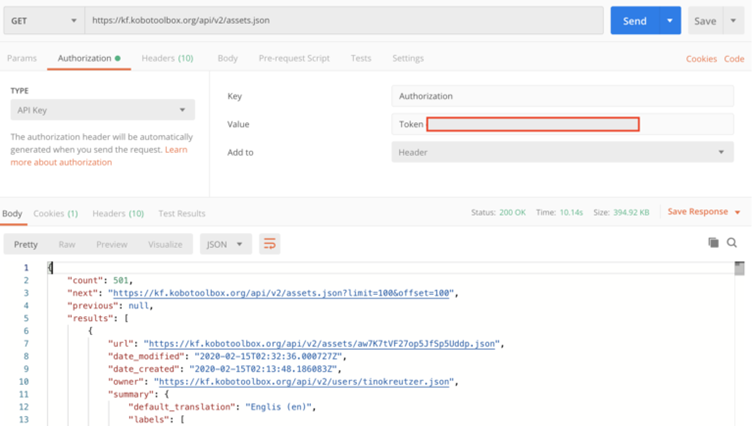
a. Requirements
Your KoboToolbox API Key (found in Account Settings)
Your Form ID (to get this, go to your project URL, it looks like aBcDeFGh123)
A backup of your deleted data in CSV, JSON, or Excel format
A tool to make API requests (e.g., Python, Postman, cURL)
b.Convert Your Data to JSON Format
KoboToolbox’s API accepts submissions in JSON format. Your data should look like this:
{ “id”: “your_ form
“submission”: [ { “field1”: “value1”, “field2”: “value2”, “field3”: “value3” }, { “field1”: “value4”, “field2”: “value5”, “field3”: “value6” } ] }
Make sure the field names match exactly with the KoboToolbox form.
c. Send a POST Request to upload Data
You can use Python, Postman, or cURL to send data to KoboToolbox.
d.Verify Your Data in KoboToolbox
- Go to KoboToolbox > Data > Table View
- Refresh the page to check if the new submissions appear
- If necessary, export the data to confirm everything is correct
4.By using scripting method
If you have accidentally deleted data in KoboToolbox, you can attempt to recover and re-upload it using the KoboToolbox API. Below is a complete script in java that:
Retrieves backups (if available)
Restores lost data
Re-uploads deleted records
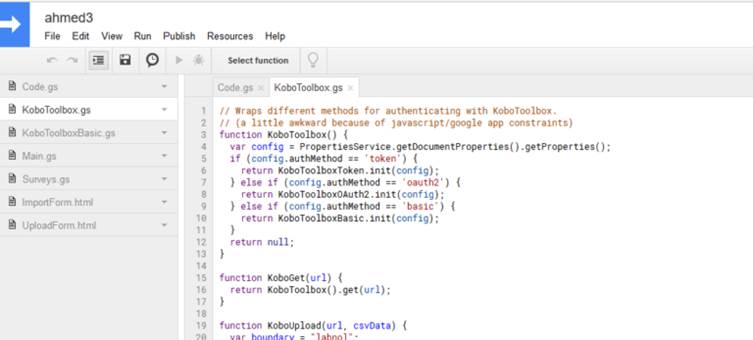
a.Requirements
KoboToolbox API Key (Find it in Account Settings)
- Form ID (Check your KoboToolbox URL for the project)
- Backup of deleted data (CSV, JSON, Excel)
b.Step-by-Step Scripting Approach
i.Get Existing Data (If Available)
Before restoring data, check if any submissions still exist.
ii. Re-Upload Deleted Data (Using Backup CSV/JSON)
If you have a backup file (CSV/Excel/JSON), you can re-upload it.
iii.Automate Recovery with a Full Script
IV.Verifying Restored Data
After running the script:
Log in to KoboToolbox
Go to Data > Table View
Check if the missing records have been restored
5.Scripting method by python
If you want to automate tasks in KoboToolbox using Python, you can interact with KoboToolbox API for tasks like:
- Fetching survey data
- Submitting data programmatically
- Managing forms (creating, updating, deleting surveys)
- Exporting responses to Excel or CSV
- Automating data analysis
1.Installing Required Libraries
First, install the necessary Python libraries
pip install requests pandas
2.Authenticate with KoboToolbox API
You’ll need an API Token from KoboToolbox.
Find it in KoboToolbox → Account Settings → API Token.
3. Fetch Form Data from KoboToolbox
Python Code to Fetch API Token
import requests
username = “your_username”
password = “your_password”
response = requests.get(“https://kf.kobotoolbox.org/token/?format=json”, auth=(username, password)) print(response.json()) # This will print your API token
4.Export KoboToolbox Data to CSV/Excel
Example: Convert API Data to CSV
import pandas as pd
data = response.json() # Fetch data from API
df = pd.DataFrame(data)
df.to_csv(“kobo_data.csv”, index=False)
print(“Data exported to kobo_data.csv”)
5.Submit Data to KoboToolbox via API
If you want to programmatically submit data:
Sending a Form Response via Python
import json
API_TOKEN = “your_api_token”
url = “https://kc.kobotoolbox.org/api/v1/submissions”
data = {
“id”: “your_form_id”,
“values”: {
“name”: “John Doe”,
“age”: 30,
“gender”: “male”
}
}
headers = {
“Authorization”: f”Token {API_TOKEN}“,
“Content-Type”: “application/json”
}
response = requests.post(url, headers=headers, data=json.dumps(data))
print(response.status_code, response.text)
6.Get a List of All Forms in KoboToolbox
url = “https://kc.kobotoolbox.org/api/v1/forms”
response = requests.get(url, headers=headers)
if response.status_code == 200:
print(response.json()) # List all available forms
else:
print(“Failed to fetch forms”)
7.Download Attachments (Images, Signatures)
If your form includes images, signatures, or file uploads, you can download them using Python
import os
API_TOKEN = “your_api_token”
FORM_ID = “12345”
headers = {“Authorization”: f”Token {API_TOKEN}“}
response = requests.get(f”https://kc.kobotoolbox.org/api/v1/data/{FORM_ID}“, headers=headers)
if response.status_code == 200:
submissions = response.json()
os.makedirs(“downloads”, exist_ok=True) # Create folder to save files
for submission in submissions:
if “image_field_name” in submission: # Replace with actual field name
image_url = submission[“image_field_name”]
image_response = requests.get(image_url, headers=headers)
filename = os.path.join(“downloads”, image_url.split(“/”)[-1])
with open(filename, “wb”) as file:
file.write(image_response.content)
print(f”Downloaded {filename}“)
else:
print(“Failed to fetch submissions”)
8.Automate Data Processing with Python
After downloading data, you can use pandas, NumPy, or Matplotlib for analysis.